BLOG
How to Reconcile a Business Bank Account
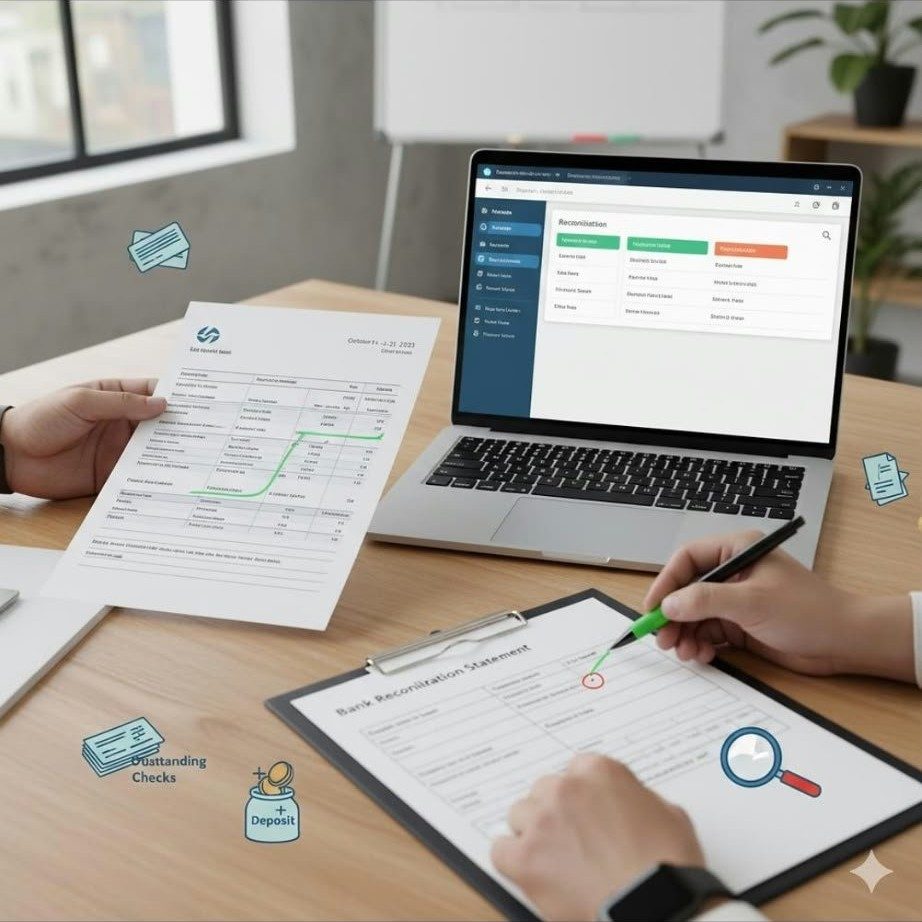
"Reconciling" sounds technical, but the idea is simple: you are checking that the transactions in your accounting software match what your bank says actually happened. Every month, your bank produces a statement — a definitive record of money in and money out. Your books should agree with it. When they don't, something needs attention.
Many owners skip reconciliation because the bank feed "handles it." But the feed only imports transactions — it doesn't verify them. Reconciliation is the verification step: it catches the double-charged subscription, the check that never cleared, the charge you don't recognize. Skip it and small errors compound until your reports can't be trusted.
What You Need Before You Start
Gather these first — starting unprepared turns a 20-minute job into a two-hour one.
- Your bank statement for the period. Paper, PDF, or online banking open in another tab — you need the statement date (the ending date of the statement period) and the ending balance.
- All transactions entered in QuickBooks Online. Clear the For Review tab in the Banking center first — transactions sitting there aren't fully in your books yet, and reconciling around them causes confusion.
- The previous period reconciled. QuickBooks fills in your beginning balance automatically from the last reconciliation. If last month was never reconciled, start there — reconciling June while May is a mess just moves the problem forward.
- About 20 to 30 uninterrupted minutes for a typical small-business account.
The Step-by-Step Process in QuickBooks Online
In QuickBooks Online, go to Accounting in the left navigation, then select Reconcile. Choose the bank account you want to reconcile, and QuickBooks will ask for two numbers from your statement.
1. Enter the statement date and ending balance
The statement date is the ending date of the period — June 30, not today. Pull the date and ending balance from the same statement; mixing July's balance with June's date is a classic mistake that surfaces much later.
2. Verify the beginning balance
QuickBooks auto-fills the beginning balance from your last reconciliation — it must match your statement exactly. If it doesn't, stop: something changed a previously reconciled transaction (edited amount, moved date, deleted entry). Resolve this first (see discrepancies below).
3. Match and clear each transaction
The Reconcile window lists payments on one side, deposits on the other. Working down your statement line by line, click each transaction that appears on it — clicking marks it cleared.
Leave anything not on the statement unchecked. Those are outstanding items, and outstanding items are completely normal. At the top of the window, QuickBooks shows the difference between your statement ending balance and the cleared balance in your books. As you check off transactions, that difference shrinks. Your goal is to bring it to exactly $0.00.
4. Finish the reconciliation
When the difference reads $0.00, select Finish now. QuickBooks marks the period reconciled. If the difference is anything other than zero, do not finish — find the cause first. The next section covers the usual suspects.
Handling Common Discrepancies
A difference that won't reach zero is a clue, not a catastrophe. Work through these in order, from most to least common.
Outstanding checks and deposits in transit
The most common "discrepancy" isn't an error at all. An outstanding check is a payment you've recorded in QuickBooks that hasn't cleared the bank yet. A deposit in transit is money you've recorded as received that the bank hasn't posted yet. Both are supposed to be outstanding — leave them unchecked and finish the reconciliation.
Example: your June statement ends at $12,437.19. After clearing everything on the statement, QuickBooks shows a $315.00 difference — your books are $315 lower. Check #1042 for $315, written June 28, hasn't cleared yet. That's your $315. Leave it unchecked, confirm the rest matches, and finish — it'll be on July's statement.
Duplicate transactions
Feeds occasionally import a transaction twice, or a manual entry duplicates a feed import. The telltale: a difference equal to exactly one transaction's amount.
Your difference is $89.99 — oddly specific. The $89.99 subscription sits in the register twice: once manual, once imported. Delete the duplicate and the difference hits zero. This is why the For Review tab deserves care — blanket-accepting everything is how duplicates sneak in.
Bank errors and unrecognized charges
Rare, but real: a wrong amount posted, or a charge you don't recognize. If a statement transaction matches nothing and you can't explain it, contact the bank before recording anything — don't invent a category to force it in. Catching these early is exactly what reconciliation is for.
Beginning balance doesn't match
If the beginning balance doesn't match, someone altered a previously reconciled transaction. Check the reconciliation history (Accounting → Reconcile → History by account) to see what changed, and restore it rather than adjusting around it. If prior periods are deeply tangled, clean up the QuickBooks file before reconciling the current month.
The forced reconciliation (don't do this)
When a difference won't resolve, QuickBooks may offer to post the difference to an account called Reconciliation Discrepancies so you can finish. This is the single most damaging shortcut in bookkeeping, and it's worth understanding why.
Say you're off by $45 and let QuickBooks post it to Reconciliation Discrepancies. Next month your beginning balance is wrong by $45 — the real error (a transposed amount, a missed fee) is still in your books, and every future reconciliation inherits it. If you're stuck, leave the month unreconciled and get help finding the real cause instead of burying it.
How Often Should You Reconcile?
Monthly, for every bank and credit card account — ideally within days of the statement closing, while transactions are fresh. Very high-volume businesses may reconcile key accounts more often, but monthly is the standard.
Skipped months don't save time; they accumulate it. Three unreconciled months means untangling three months of duplicates, missing transactions, and feed errors at once — and until then, your P&L rests on unverified numbers.
What "Reconciled" Actually Proves (and What It Doesn't)
A reconciled month proves something specific and valuable: your books agree with the bank statement at the statement date, after accounting for outstanding items. That's how you catch missing or doubled transactions, bank errors, and charges you don't recognize.
It doesn't check categorization — a $500 supply purchase filed under meals reconciles perfectly. It doesn't catch income that never hit the bank. The numbers still need to make sense when you're reading your P&L — reconciliation verifies the raw material; the analysis comes after.
Key Takeaways
- Reconcile every bank and credit card account monthly, shortly after each statement closes.
- Before you start: clear the For Review tab in the Banking center so everything is categorized, and make sure the prior month is reconciled.
- In QuickBooks Online: Accounting, then Reconcile. Enter the exact statement date and ending balance from the same statement, then mark cleared each transaction that appears on it until the difference is $0.00.
- Outstanding checks and deposits in transit are normal — leave them unchecked and finish.
- Never force a reconciliation to balance with a journal entry to Reconciliation Discrepancies. Find the real cause.
- A reconciled account proves your books match the bank. It doesn't prove every transaction is categorized correctly — that's a separate review.
If monthly reconciliation keeps sliding to the bottom of your to-do list, you don't have to do it alone. I handle monthly bookkeeping and reconciliations for U.S. small businesses: categorized transactions, reconciled accounts, and reports you can actually use. To talk through what your books need, book a free consultation.
Want books like these?
Monthly bookkeeping, catch-up and cleanup, and financial reports you can actually use — for U.S. small businesses.
Book a free consultation